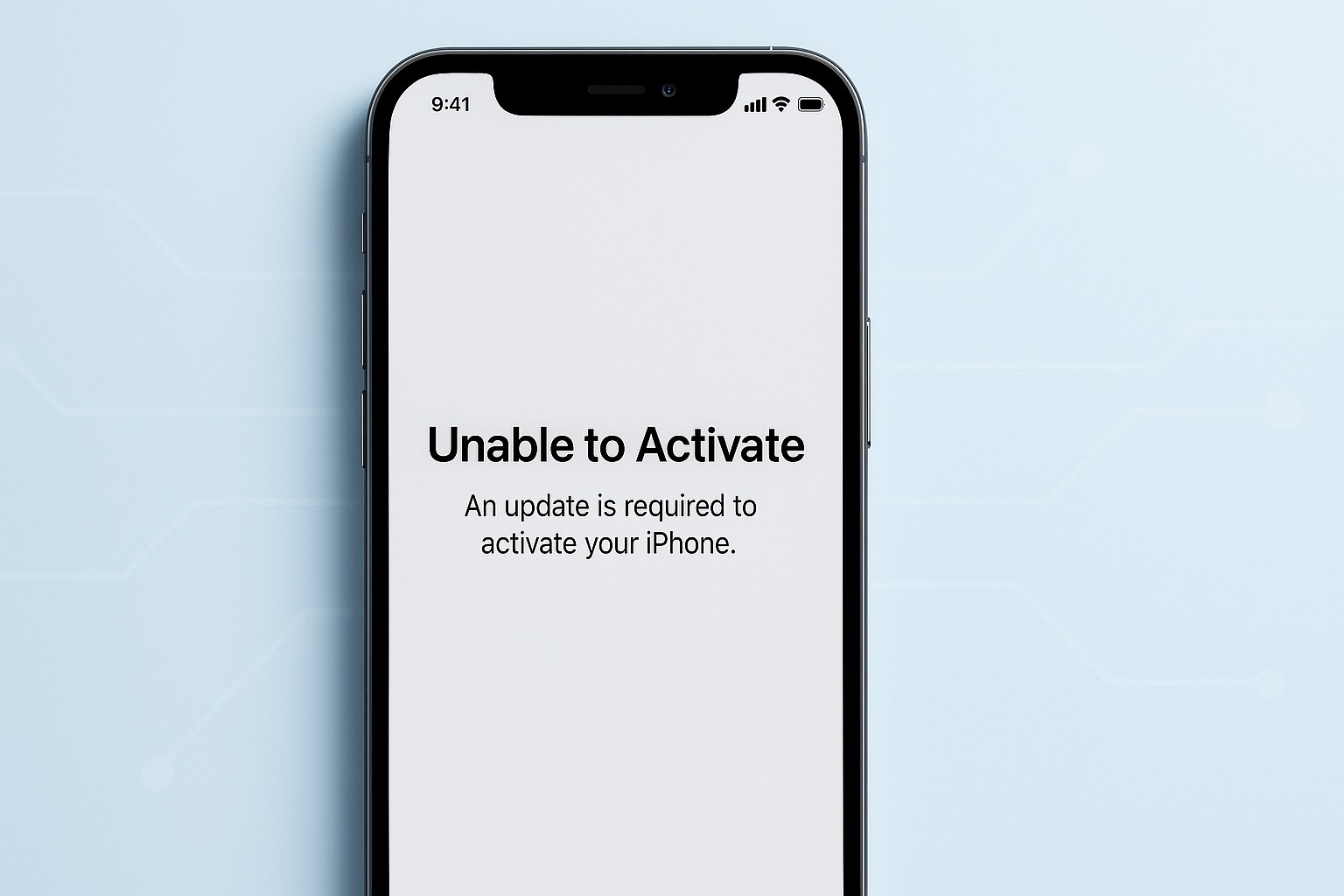
When setting up a new iPhone — or restoring an old one — one of the most frustrating messages you can encounter is:
“Unable to Activate. An update is required to activate your iPhone.”
or
“Unable to activate your iPhone because the activation server cannot be reached.”
This activation failure happens on all models, from iPhone X to iPhone 15, and even affects eSIM-only devices. The good news? Most activation issues can be fixed at home with a few simple steps.
This in-depth guide explains all known causes of the “Unable to Activate iPhone” error and provides actionable solutions in plain English.
What Does “Unable to Activate iPhone” Mean?
This message appears when your iPhone cannot connect to Apple’s activation servers — or when your SIM/eSIM cannot be validated to complete setup.
iPhone activation requires:
- A valid SIM or eSIM
- Internet access
- Apple activation servers
- A supported carrier
- A properly restored firmware
If any one of those fails, your iPhone displays an activation error.
Common Versions of the Error
You may see variations such as:
- “Unable to activate—An update is required to activate your iPhone.”
- “Your iPhone could not be activated because the activation server cannot be reached.”
- “No SIM or Invalid SIM”
- “SIM Not Supported” (carrier lock issue)
- “Activation information could not be obtained from the device.”
All of these fall under the same problem category.
Why Your iPhone Won’t Activate: All Possible Causes
1. Apple Activation Server Issues
If Apple’s servers are down, activation fails globally.
2. SIM Card or eSIM Problems
A damaged SIM, unsupported carrier, or corrupted eSIM profile can block activation.
3. Network/Internet Problems
Activation requires a stable Wi-Fi or mobile connection.
4. iOS Version Mismatch
Sometimes, an outdated firmware requires an update before activation.
5. Carrier Lock Issues
If the device is locked but the SIM is from another carrier, activation stops.
6. Device Not Fully Erased
Leftover activation records from previous setup attempts can cause loops.
7. Hardware Issues
Damage to logic board, baseband, or antennas can prevent iPhone activation.
How to Fix “Unable to Activate iPhone” – Step-by-Step
1. Check Apple’s System Status
Before trying anything else, confirm whether Apple’s activation servers are online.
Search: Apple System Status → iOS Device Activation
If it’s yellow or red → The problem is not from your device.
Wait 30 minutes to 2 hours.
2. Restart Your iPhone
A simple restart often resolves temporary activation glitches.
For iPhone X and later:
- Press and hold Volume Up + Side Button.
- Slide to power off.
- Turn the device back on.
Try activation again.
3. Remove and Reinsert the SIM Card
If you’re using a physical SIM:
- Power off the iPhone
- Remove the SIM tray
- Clean it gently
- Reinsert the SIM correctly
Try a different SIM if available — even a different carrier.
(If activation works with another SIM → It’s a carrier issue.)
4. For eSIM Users: Reinstall eSIM
If the device is eSIM-only (iPhone 14 US, iPhone 15 US) or using an eSIM:
Option A: Use Carrier QR Code
Scan the activation QR provided by your carrier.
Option B: Request eSIM reset
Ask your carrier to “release” or “reset” your eSIM profile.
Option C: Activate via Carrier App
E.g., the AT&T or T-Mobile app.
5. Check for Carrier Lock
Activation will fail if the phone is locked to another carrier.
Check via Settings (if you can reach home screen):
Settings → General → About → Carrier Lock
- If it says: “No SIM restrictions” → Not locked
- If it shows a carrier → Locked device
(You MUST activate with the correct SIM.)
If activation is stuck:
Use: Check Coverage → Device Activation Lock → Enter IMEI
If locked, only the carrier can unlock it.
6. Ensure Your iPhone Has Internet Access
Activation requires internet.
Try switching between:
- Wi-Fi
- Mobile data
- Another Wi-Fi network
If your Wi-Fi blocks Apple servers (common on office or school networks), switch to a hotspot.
7. Try Activation Using a Computer (Finder/iTunes)
On Mac (Finder):
- Connect iPhone
- Open Finder
- Select your iPhone
- Click Restore or Update
- Follow the steps
On Windows (iTunes):
- Install latest iTunes
- Connect iPhone
- Choose Restore or Update
This method can activate devices that fail on-device.
8. Update the iPhone Before Activation (“Update Required” Fix)
If activation requires a firmware update:
- Connect the iPhone to a computer
- Open Finder/iTunes
- Select Update
Do not select Restore unless necessary — it will erase the device.
9. Use Recovery Mode
If activation still fails:
Steps:
- Connect iPhone to computer
- Quickly press Volume Up
- Quickly press Volume Down
- Hold Side Button until Recovery Mode appears
- Choose Update (not Restore)
This reinstalls the activation component without data loss.
10. Use DFU Mode (Deep Restore) – Advanced Fix
DFU (Device Firmware Update) is the deepest reset possible.
Steps for iPhone X–15:
- Connect to computer
- Press Volume Up, then Volume Down
- Hold Side Button until screen turns black
- When it’s black, press Side Button + Volume Down together
- After 5 seconds, release Side Button, keep holding Volume Down
- Screen stays black → DFU entered
In Finder/iTunes → choose Restore.
⚠️ This erases all data.
Use only if nothing else works.
Special Cases & Situational Fixes
1. Bought iPhone From Another Owner
Ask them to remove the device from their Apple ID:
iCloud.com → Find Devices → Remove from account
If not removed → Activation Lock prevents setup.
2. Used/Refurb Devices With Unknown History
Possible issues:
- Stolen or blacklisted
- Incorrect carrier lock
- Previous owner’s eSIM
- Hardware-level baseband failure
If IMEI is blacklisted → Activation will fail indefinitely.
3. iPhone Stuck After iOS Update
This happens when firmware partially installs.
Use:
➡ Recovery Mode Update
➡ DFU Restore
➡ Try a different computer or port
4. eSIM Activation Loop on iPhone 14–15 (US Models)
Common on eSIM-only devices.
Try:
- Remove previous eSIM
- Add eSIM manually using carrier app
- Reset Network Settings
- Switch to physical SIM (international models only)
When Activation Failure Means Hardware Damage
If the iPhone has suffered:
- Heavy drop
- Water exposure
- Logic board repair
- Baseband IC damage
You may notice:
- “No Service”
- “Searching…”
- IMEI shows Unknown
- Cannot toggle “Cellular Data”
These are baseband failures — activation is impossible without repair.
Professional-Level Fixes (When Nothing Works)
- Try a different computer (Windows & Mac)
- Use a different USB cable
- Restore using IPSW firmware manually
- Remove VPN, firewall, antivirus on computer
- Confirm the device is not MDM-locked
- Contact the carrier to refresh activation
For persistent hardware issues → Apple Store or authorized repair center.
FAQ: “Unable to Activate iPhone”
1. How long does iPhone activation take?
Usually 30 seconds to 3 minutes.
Longer = something wrong with network, SIM, or servers.
2. Can I activate an iPhone without a SIM?
Some models allow Wi-Fi activation without SIM, but many require a SIM or eSIM first.
3. Does eSIM activation require internet?
Yes. eSIM activation always requires Wi-Fi or mobile data.
4. Why does it say “Update required to activate your iPhone”?
Your firmware is outdated and must be updated via Finder/iTunes.
5. What if the iPhone says SIM Not Supported?
This means the phone is carrier-locked to another network.
READ MORE: How to Fix iPhone Error 4013 During Restore
Final Thoughts
“Unable to Activate iPhone” is one of the most common iPhone setup errors — but in most cases, you can fix it at home using the steps above. Whether it’s SIM issues, carrier locks, Apple server problems, or firmware conflicts, the majority of activation failures do not require professional repair.
If none of the solutions work, the issue may be hardware-related — especially baseband or logic board problems.
Need help with another iPhone error? Just tell me the error code or message.
This article is for informational purposes only. iPhoneErrors.com is not affiliated with Apple Inc. For official support, please visit Apple’s website at support.apple.com.