
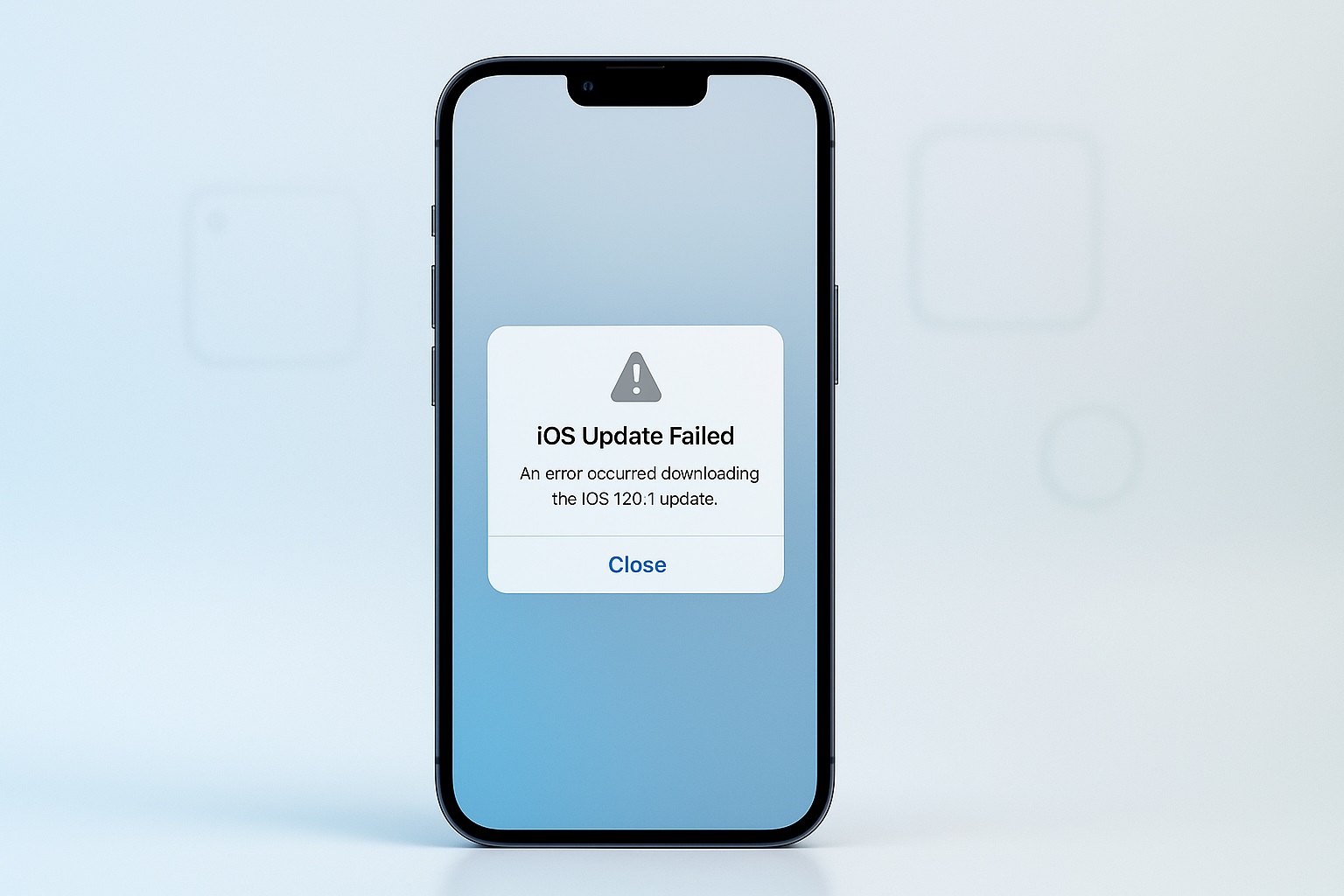
Updating your iPhone to the latest version of iOS should be simple — but many users encounter the frustrating “iOS Update Failed” message, or the update simply gets stuck on Preparing Update, Verifying Update, or Downloading… with no progress.
This guide walks you through every cause of an iOS update failure and the most effective fixes, based on Apple documentation, expert insights, real user reports, and years of troubleshooting experience.
Whether you use an older iPhone or the latest model, the steps below will help you successfully install the update without losing your data.
1. Why iOS Update Failed on Your iPhone
Most iOS update failures fall into just a few categories. Below are the most common reasons, backed by Apple data and real-world user reports.
1.1 Unstable or Weak Wi-Fi
OTA updates require a strong, stable Wi-Fi connection.
Slow or fluctuating networks cause:
- “Software Update Failed”
- Stuck on “Preparing Update”
- “Unable to Verify Update”
Hotspots, public Wi-Fi, and metered networks often fail.
1.2 Apple Server Overload
During the first 24–48 hours after a major iOS release, Apple’s servers get overwhelmed. When the servers slow down, your update may fail mid-installation.
Common symptoms:
- Update stuck on Verifying
- Update restarts or cancels
- “Unable to Check for Update”
1.3 Not Enough Storage Space
iOS updates require temporary storage to unpack the update file.
Even a 3 GB update can require 10–12 GB of free space during installation.
1.4 Battery Level Too Low
Your iPhone needs at least:
- 50% battery, or
- To be connected to a charger
Updating on low battery will trigger an automatic fail.
1.5 Beta Profiles or Old Configuration Profiles
If you previously installed:
- iOS Beta profile
- Developer profile
- Carrier update profile
…they may conflict with public releases.
1.6 Corrupted Update File
If the downloaded update file is damaged or incomplete, the iPhone cannot verify or install it.
This often causes:
- “Unable to Verify Update”
- Update stuck on Preparing
1.7 Software Glitches
Unexpected bugs can interrupt an update:
- System cache corruption
- Background app interference
- Low RAM on older devices
1.8 Network Restrictions
VPNs, proxy settings, or restricted office/school networks may block the update servers.
2. Quick Fixes to Try Before Anything Else
These simple steps fix 70% of update failures.
2.1 Restart Your iPhone
This clears system cache and resets temporary processes.
- Press and hold the Power + Volume button
- Slide to power off
- Turn it back on
- Retry the update
2.2 Check Apple System Status
If Apple’s servers are down, no troubleshooting will work.
- Visit: Apple System Status
- Look for “iOS Device Activation” or “Software Update”
- If yellow or red → wait and try again later
2.3 Connect to a Stronger Wi-Fi Network
Avoid:
- Public Wi-Fi
- Coffee shop networks
- Mobile hotspots
Connect to a home or office network with stable bandwidth.
2.4 Charge Your iPhone
Charge to at least 50%, or plug it in during the update.
2.5 Free Up Storage Space
Go to:
Settings → General → iPhone Storage
Target at least 10 GB free space.
Delete or offload:
- Large apps
- Old messages
- Downloaded videos
- Duplicate photos
3. Advanced Fixes for “iOS Update Failed”
If the quick fixes didn’t help, move on to these proven solutions.
3.1 Delete the Old Update File
This is the #1 fix for stuck or failed updates.
- Go to Settings
- Tap General
- Tap iPhone Storage
- Find iOS Update
- Tap Delete Update
- Restart the iPhone
- Retry the update
This clears corrupted download files.
3.2 Disable VPN or Proxy
VPNs often cause verification to fail.
- Go to Settings → VPN
- Turn off
- Delete VPN profiles if unnecessary
Also remove proxy:
Settings → Wi-Fi → [Network] → Configure Proxy → Off
3.3 Remove Beta Profiles
Old beta profiles block public updates.
Go to:
Settings → General → VPN & Device Management
Remove:
- iOS Beta Software Profile
- Developer Profile
Restart then retry.
3.4 Reset Network Settings
Fixes Wi-Fi, DNS, and server connection issues.
Go to:
Settings → General → Transfer or Reset iPhone → Reset → Reset Network Settings
(This will reset Wi-Fi passwords.)
3.5 Update Using Finder (Mac) or iTunes (Windows)
If OTA fails, updating via computer has a 99% success rate.
On Mac:
- Connect your iPhone
- Open Finder
- Select your device
- Click Check for Update
- Install
On Windows:
- Install iTunes
- Connect your iPhone
- Click your device
- Choose Update
3.6 Update via Recovery Mode (Fixes Stuck Issues)
Use this when iPhone is stuck on:
- Preparing update
- Verifying update
- Apple logo loop
How to enter Recovery Mode:
- Connect iPhone to your computer
- Follow model-specific button instructions:
- For Face ID models: Press Volume Up → Volume Down → hold Power
- For Home button models: Hold Power + Home
- Finder/iTunes will show a popup:
“iPhone in Recovery Mode”
Choose Update (NOT Restore).
This installs iOS without deleting data.
3.7 Use DFU Mode (Ultimate Fix)
DFU mode replaces the entire firmware.
Use this only if other fixes fail.
- Connect iPhone to computer
- Follow DFU sequence (differs by model)
- Finder/iTunes will detect DFU mode
- Click Restore
⚠ DFU erases all data unless you have a backup.
4. Fixing Specific iOS Update Errors
Here are solutions for targeted update problems.
4.1 “Unable to Verify Update”
This occurs when:
- Wi-Fi is unstable
- Download is corrupted
- Time/date settings are wrong
Fix:
- Delete the update file
- Turn off VPN
- Set Date & Time to Automatic
4.2 “Preparing Update” Stuck
Fix by:
- Restarting iPhone
- Deleting update
- Updating via Finder/iTunes
4.3 “Verifying Update” Stuck
Usually a server or Wi-Fi issue.
Fix by:
- Switching Wi-Fi networks
- Turning off VPN
- Resetting network settings
4.4 “Update Requires a Network Connection”
This happens on cellular-only or restricted Wi-Fi.
Fix by:
- Connecting to a genuine Wi-Fi network
- Reset network settings
- Turning off Low Data Mode
5. How Much Storage You Actually Need for iOS Updates
| iOS Version Size | Temporary Space Required | Recommended Free Space |
|---|---|---|
| 2–3 GB update | 5–8 GB | 10 GB |
| 3–5 GB update | 8–12 GB | 12 GB |
| Major upgrade | 10–15 GB | 15+ GB |
Older iPhones with 64GB struggle most.
6. Prevent iOS Update Issues in the Future
Follow these tips to avoid update failures long-term.
6.1 Keep at Least 10 GB Free
Regularly clear:
- Old messages
- App caches
- Offline videos
- Duplicate photos
6.2 Remove Old Beta Profiles
Never keep unused test profiles.
6.3 Update Apps First
Some outdated apps can interfere during installation.
6.4 Avoid Peak Hours
Apple servers are busiest on:
- Release day
- First 48 hours
Update early morning or late at night.
6.5 Use a Stable Wi-Fi Network
Avoid hotspots, VPNs, and metered connections.
7. FAQs About iOS Update Failed
Q1: Why does my iOS update keep failing repeatedly?
Most commonly because of unstable Wi-Fi, low storage, or corrupted update files.
Q2: Will updating via Finder/iTunes delete my data?
No — using Update keeps all data.
Q3: How long should “Preparing Update” take?
Usually 1–5 minutes. Anything above 30 minutes is stuck.
Q4: Can I update iPhone without Wi-Fi?
Only via Finder/iTunes on a computer.
Q5: Does DFU mode delete data?
Yes, it fully wipes the device.
Q6: Can low battery cause update failure?
Yes, updating requires at least 50% battery or charging.
Q7: Why is my iPhone stuck on “Verifying Update”?
Apple server delay or Wi-Fi instability.
Conclusion
The “iOS Update Failed” error can be stressful, but most issues have simple solutions. Whether your update is stuck, unable to verify, or repeatedly failing, the steps above will help you diagnose and fix the problem quickly and safely.
If all else fails, updating through Finder/iTunes or Recovery Mode is almost always successful.
This article is for informational purposes only. iPhoneErrors.com is not affiliated with Apple Inc. For official support, please visit Apple’s website at support.apple.com.